In this period of pandemic online meetings becoming quite common. And one of the best ways to take meetings online is Google Meet. So we have collected the best tips to share to make your meeting even better on Google Meet.
1. Active Noice Cancellation
Noise in your meeting is one of the most distracting problems. It can distract your viewers and make them think that you are unimportant to them or make it a hard time for them to listen to you.
Google Meet does not come with an inbuild Noise cancellation to help. But worry not, you can use an application called Krisp which is available on both Mac and Windows.
Krisp is an AI-powered app that removes background noise and echoes from meetings leaving only a human voice. The app is quite powerful and can help a ton.
2. Push to Talk

There is a feature in Zoom called Push to Talk, what it does is, whenever you hold the space bar the mic will be unmuted and when you leave the spacebar the mic will automatically mute itself.
This handy feature is unluckily not present in google meet's normal consumer version. But we can use the Google Meet Push-To-Talk extension to bring this feature.
3. Breakout Rooms

What this feature does is, splits a meeting so that you can deal with the meeting more easily.
To get and try this feature you have to download an extension called Google Meet Breakout Rooms.
It's quite easy to get started and is a great tool for your meetings.
4. Change Background
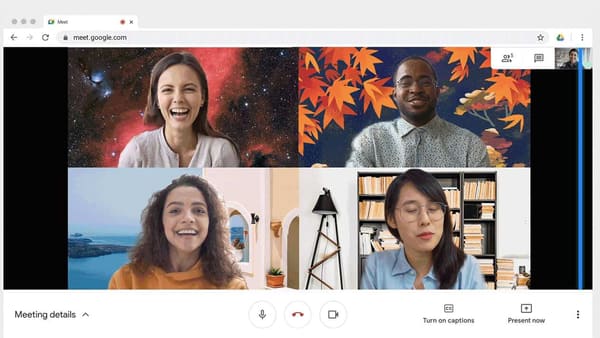
Google added a Feature to zoom called Background and what this feature does is, removes your background and replace it with a background of your liking. So you don't have to embarrass yourself with a messy room in the background
5. Creating Meeting Faster

Sometimes you need to make a meeting very quick cause you forgot about the time. This tip will come in handy for you.
To create a Meeting faster, all you have to do is type meet.google.com/new in your browser and bookmark this page. And after that whenever you want to create a new Meet link just click on that button and that meeting would be created super fast.
____________
Hope these Google Meet tips helped you in your meeting. If they did please consider sharing this post to others by the link below to spread the tips to others.